Introduction to JPG Conversion
While JPG is an excellent format for photographs and web images, there are many situations where converting JPG files to other formats is necessary. Whether you need transparency for a logo, animation for a presentation, or lossless compression for graphics, our Convert from JPG tool provides the perfect solution. This comprehensive guide will show you how to transform your JPG images into various formats for different purposes.
Why Convert from JPG Format?
Converting JPG to other formats serves specific purposes that JPG can't handle:
- Transparency Needs: JPG doesn't support transparency - convert to PNG for transparent backgrounds
- Animation Requirements: Create animated GIFs from multiple JPG frames
- Lossless Compression: PNG offers lossless compression for graphics with text
- Modern Web Formats: Convert to WebP for better compression and features
- Print Preparation: TIFF format for high-quality print materials
- Vector Conversion: Transform to SVG for scalable graphics (with limitations)
Pro Tip
When converting JPG to PNG for transparency, remember that JPG doesn't have an alpha channel. You'll need to manually add transparency in an image editor after conversion, or start with a format that already supports transparency.
Common Conversion Formats from JPG
1. JPG to PNG Conversion
Convert JPG to PNG when you need:
- Transparency support for logos or graphics
- Lossless compression for images with text
- Web graphics that require sharp edges
- Screenshots or interface elements
2. JPG to GIF Conversion
Create animated GIFs from multiple JPG images:
- Combine photo sequences into animations
- Create simple web animations
- Make presentation graphics
- Build loading spinners or progress indicators
Create Animated GIFs from JPGs
Turn your JPG sequences into engaging animations
Create Animated GIFs3. JPG to Other Formats
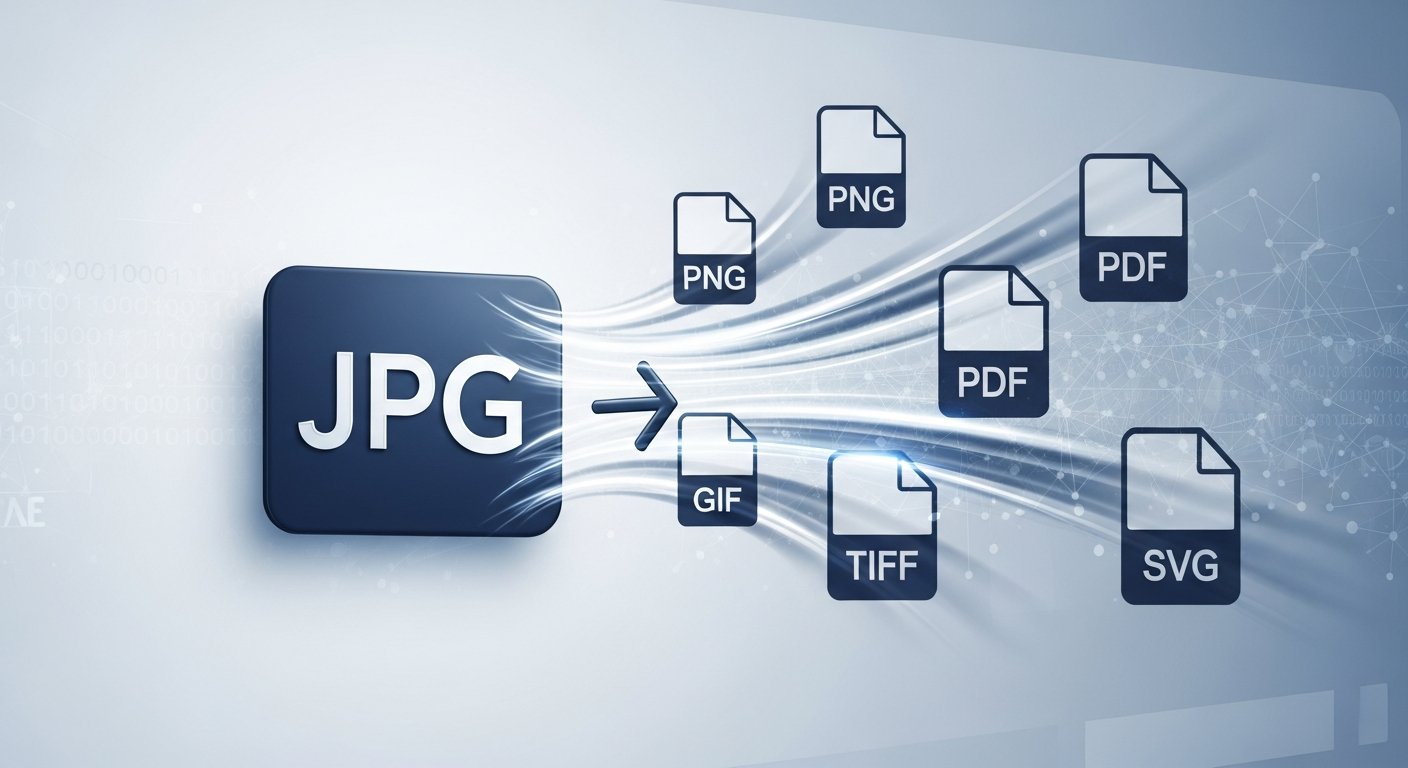
Our converter also supports:
- WebP: Modern format with superior compression (25-35% smaller than JPG)
- BMP: Uncompressed format for specific software requirements
- TIFF: High-quality format for printing and archiving
- ICO: Create icon files for Windows applications
Step-by-Step Guide to Convert from JPG
1. Prepare Your JPG Files
Before conversion, consider these preparation steps:
- Select high-quality JPG originals for best results
- For GIF creation, organize JPGs in the desired animation order
- Consider image dimensions - some formats have size restrictions
- Backup original JPG files before conversion
Optimize Your Images First
Prepare your JPGs for better conversion results
2. How to Use Our Convert from JPG Tool
Follow these simple steps:
- Open our Convert from JPG tool
- Upload your JPG images by dragging and dropping or using the file selector
- Select your target format (PNG, GIF, WebP, etc.)
- For GIF creation, adjust animation settings (frame delay, loop count)
- Choose compression level for PNG or quality settings for other formats
- Click "Convert from JPG" to process your images
- Download your converted files individually or as a ZIP archive
3. Creating Animated GIFs from JPGs
Special considerations for GIF creation:
- Frame Order: Arrange JPGs in the sequence you want them to appear
- Frame Delay: Set timing between frames (100ms = 10 frames per second)
- Loop Count: Choose infinite loop or specific number of repetitions
- Color Reduction: GIFs are limited to 256 colors - optimize for best results
Best Practices for Format Conversion
1. Choosing the Right Format
- Use PNG for: Logos, graphics with text, images needing transparency, screenshots
- Use GIF for: Simple animations, low-color graphics, small web graphics
- Use WebP for: Modern websites, better compression than JPG/PNG
- Use TIFF for: High-quality printing, archival purposes
2. Quality Considerations
- Start with the highest quality JPG available
- Converting from JPG to another format won't restore lost quality
- Each format has different compression characteristics
- Test different quality settings to find the optimal balance
3. File Size Management
- PNG files are often larger than JPG for photographs
- GIF files can be large for complex animations
- WebP typically offers the best compression
- Consider using our Image Compressor after conversion
Quality Tip
When converting JPG to PNG for web use, consider using PNG-8 for simple graphics (256 colors) and PNG-24 for complex images with transparency. PNG-8 offers smaller file sizes while PNG-24 provides better quality.
Common Conversion Scenarios
1. Website Logo Conversion
Convert JPG logos to PNG with transparency for clean website integration. PNG supports alpha transparency, allowing logos to blend seamlessly with any background.
2. Social Media GIF Creation
Transform a series of JPG photos into an animated GIF for social media posts. Perfect for showing product features, demonstrating processes, or creating engaging content.
3. Print Material Preparation
Convert JPG photos to TIFF for high-quality printing. TIFF supports lossless compression and is preferred by professional printers.
4. Web Optimization
Convert JPG images to WebP for modern websites. WebP provides superior compression while maintaining quality, reducing page load times significantly.
Related Tools for Complete Workflow
Combine format conversion with other image tools for optimal results:
Complete Image Tool Suite
All the tools you need for professional image editing
Conclusion
Converting JPG images to other formats is essential for specific use cases where JPG's limitations become apparent. Whether you need transparency for a website logo, animation for social media, or lossless compression for graphics, our Convert from JPG tool provides a simple, free solution.
Remember that conversion from JPG to other formats won't restore quality lost during JPG compression, so always start with the highest quality originals. Experiment with different formats and settings to find the optimal solution for your specific needs, and don't forget to explore our other image tools for complete image optimization workflows.