Introduction: Why Merge PDF Files?
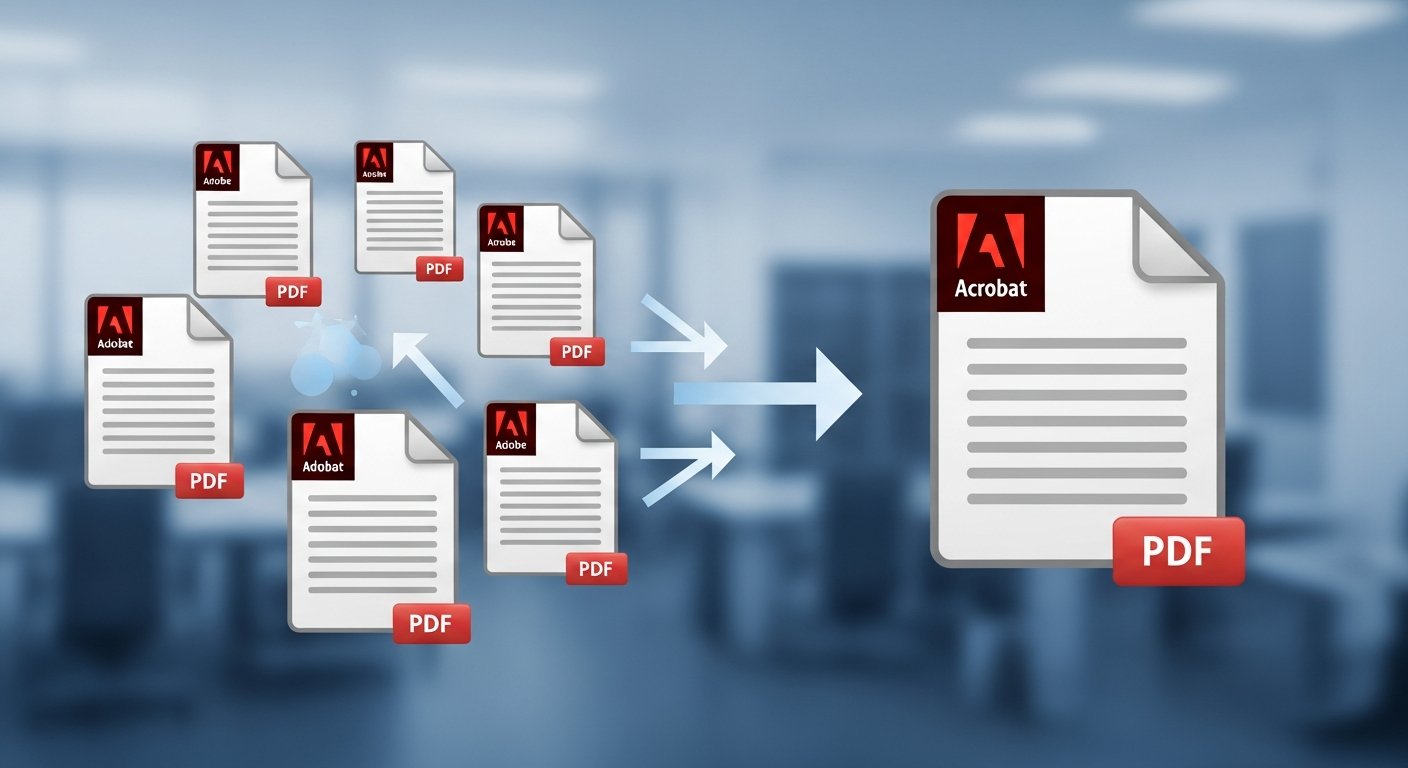
Merging PDF files is an essential skill in today's digital world. Whether you're a student compiling research papers, a professional creating comprehensive reports, or anyone who needs to organize multiple documents, knowing how to merge PDFs efficiently can save you time and frustration. Our free online PDF merger makes this process simple, secure, and accessible to everyone.
Try Our Free PDF Merger
Combine multiple PDFs into one document instantly - no registration required
Merge PDFs NowKey Benefits
• 100% free with no registration required • All processing happens locally in your browser • Maintains original formatting and quality • Unlimited file merging with no restrictions
When Should You Merge PDF Files?
PDF merging is useful in countless situations. Here are the most common scenarios:
1 Academic & Educational
• Combine research papers and essays • Assemble thesis chapters • Create comprehensive study materials • Merge multiple assignments into one submission
2 Business & Professional
• Merge reports and proposals • Combine contracts and legal documents • Create complete project portfolios • Assemble financial statements and invoices
3 Personal Organization
• Combine travel documents • Merge scanned receipts • Create photo books from image PDFs • Assemble family records and certificates
Key Features of Our PDF Merger
Step-by-Step Tutorial: How to Merge PDF Files
1 Access Our PDF Merger Tool
Navigate to our Merge PDFs tool. The interface loads instantly in your browser – no software installation or registration required.
Browser Compatibility
Works on all modern browsers: Chrome, Firefox, Safari, Edge. Also compatible with mobile devices for on-the-go PDF merging.
2 Upload Your PDF Files
Choose from multiple upload methods:
- Drag & Drop: Simply drag PDF files onto the upload area
- Browse Files: Click to select files from your computer
- Multiple Selection: Select multiple files at once (Ctrl+Click or Cmd+Click)
- Add More: Upload additional files at any time before merging
Pro Tip
Rename your files before uploading for easier organization. Example: "Report_Chapter1.pdf", "Report_Chapter2.pdf"
3 Arrange and Organize Files
Once uploaded, you have complete control over the order:
- Drag to Reorder: Click and drag files to rearrange
- Move Up/Down: Use arrow buttons for precise control
- Remove Files: Click "X" to remove any document
- Preview Pages: Click any file to preview contents
4 Merge and Process
Click the "Merge PDFs" button to begin. Our tool will:
- Process each file locally in your browser (your data stays private)
- Combine all pages in your specified order
- Preserve fonts, images, and formatting exactly as in the originals
- Create a single, unified PDF document
Security Guarantee
Your files never leave your computer. All processing happens locally in your browser, ensuring 100% privacy and security.
5 Download Your Merged PDF
Once processing completes (usually within seconds):
- Click "Download" to save the merged PDF
- Choose a descriptive filename
- Select your preferred download location
- Optionally, click "Merge More" for additional files
Start Merging Your PDFs Today!
Experience the convenience of hassle-free PDF merging
Try PDF Merger NowAdvanced Merging Features
Selective Page Merging
For more control over your final document:
- Choose Specific Pages: Select only certain pages from each PDF
- Page Ranges: Merge specific sections (e.g., pages 5-10)
- Exclude Pages: Skip unnecessary pages from the final document
Orientation Management
When mixing portrait and landscape pages:
- Our tool automatically detects page orientation
- Manual rotation options available if needed
- Final document maintains consistent formatting
Best Practices for Perfect Results
✓ Preparation Tips
• Check all source files for errors before merging • Use descriptive filenames for easy organization • Consider file sizes – very large files may process slower
✓ During Merging
• Double-check the page order before clicking merge • Preview individual files if unsure about content • Save your work regularly
✓ After Merging
• Open and verify the merged PDF • Keep backup copies of original files • Use descriptive names for the final document
Troubleshooting Common Issues
Slow Processing
If merging takes longer than expected:
- Close unnecessary browser tabs to free up memory
- Split very large merges into multiple sessions
- Ensure stable internet connection
Formatting Problems
If formatting appears incorrect:
- Verify source PDFs are properly formatted
- Try merging smaller batches of files
- Consider converting problematic files first
Large File Size
If merged file is too large:
- Use our PDF Compressor tool after merging
- Remove unnecessary pages or images
- Optimize images within PDFs before merging
Summary of Benefits
• 100% free with no hidden costs • No registration or account required • All processing happens locally in your browser • Unlimited file merging with no restrictions • Preserves original quality and formatting • Works on all devices and browsers
Conclusion: Simplify Your PDF Workflow
Merging PDF files should be simple, fast, and secure – and with our free online tool, it is. Whether you're working on academic projects, business documents, or personal files, our PDF merger provides a reliable solution that requires no technical expertise. The process takes just minutes, and your privacy is always protected.
Start Merging Your PDFs Today!
No registration required - try our free PDF merger now
Launch PDF Merger