Why Compress PDF Files?
Large PDF files can cause issues when sharing or uploading. Compression helps solve these problems:
- Email Attachments: Many email providers have file size limits
- Website Uploads: Smaller files load faster for visitors
- Storage Space: Save disk space on your devices
- Faster Sharing: Reduce upload and download times
- Mobile Access: Easier to view on smartphones
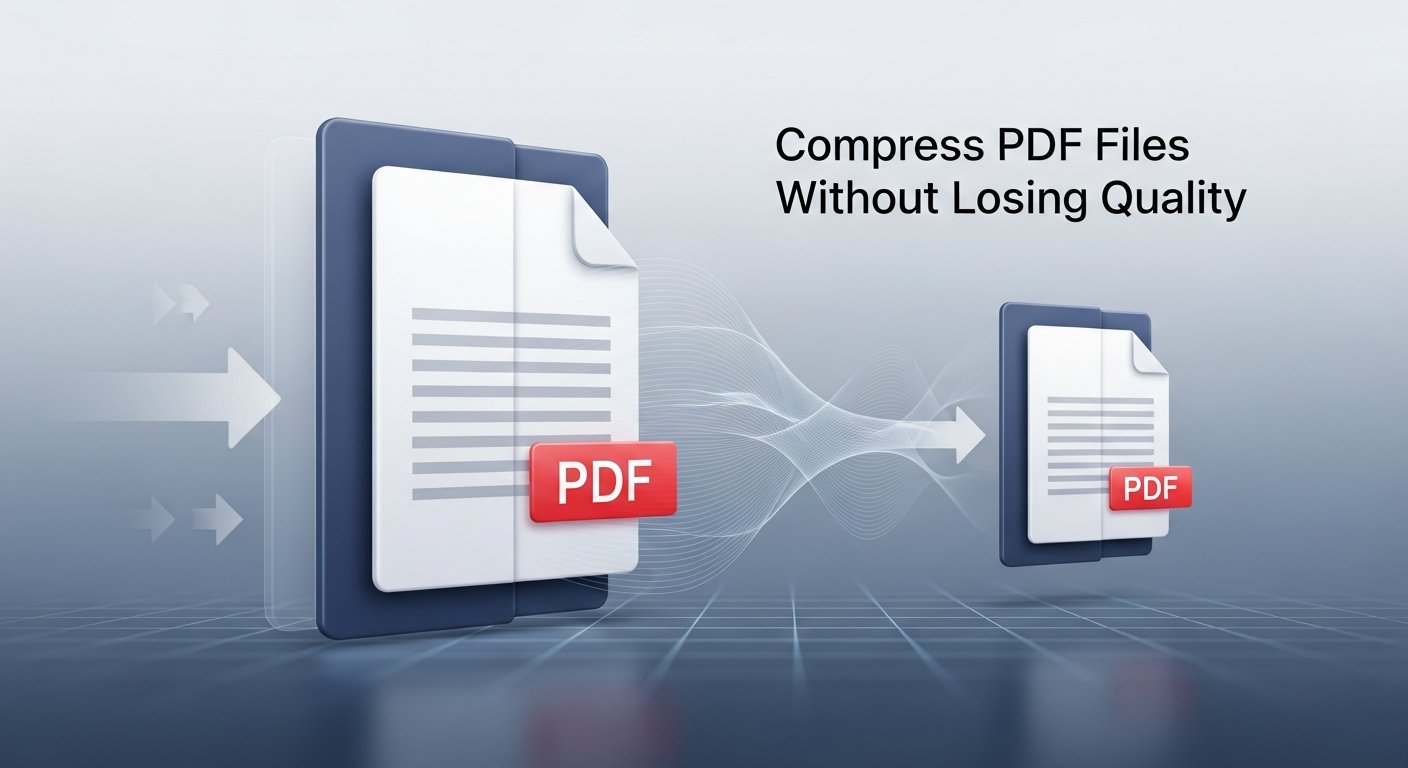
Typical compression results:
Original: 15 MB PDF document
Compressed: 3 MB (80% reduction)
Quality: Visual quality maintained
PDF Compression Tool: Shrink Files Efficiently
Our PDF Compressor tool reduces file size while maintaining quality
Try PDF CompressorPro Tip
For documents with many images, use "High" compression. For text-only documents, "Medium" compression usually preserves quality while reducing size significantly.
How to Compress a PDF Document
Follow these simple steps to reduce your PDF file size:
- Select the PDF Compressor tool from our navigation
- Upload your PDF file by dragging and dropping or browsing
- Choose compression level:
- Low: Minimal size reduction, maximum quality
- Medium: Balanced size and quality (recommended)
- High: Maximum size reduction
- Click "Compress PDF" to process
- Preview the compressed file size and quality
- Download your compressed PDF
When to use each compression level:
• Low: Important documents, legal papers, archival
• Medium: General documents, reports, presentations
• High: Web uploads, email attachments, drafts
Complete PDF Tool Suite
Our PDF tools help with various document tasks
- Merging PDFs: Combine multiple documents into one
- Splitting PDFs: Extract specific pages or sections
- Compressing PDFs: Reduce file size for sharing
- Converting Images: Turn images into PDF documents
When to Compress PDF Files
Consider compressing your PDFs in these situations:
- Email Attachments: When files exceed 10MB limit
- Website Uploads: For faster page loading
- Cloud Storage: To save space and sync faster
- Mobile Sharing: For easier sharing via messaging apps
- Archiving: To reduce long-term storage requirements
Best Practice
Always keep a copy of your original uncompressed PDF. Use the compressed version for sharing, but maintain the original for printing or further editing.
Why Use Online PDF Tools?
- No Installation Required: Works directly in your browser
- Completely Free: No subscription fees or limits
- Secure Processing: Files never leave your computer
- Cross-Platform: Works on Windows, Mac, Linux, and mobile
- No Registration: Start using immediately
Best Practices for PDF Management
- Use descriptive filenames for easy organization
- Check file sizes before emailing or uploading
- Preview changes before finalizing
- Keep original files as backups
- Use compression for web uploads
Conclusion
Working with PDFs doesn't have to be complicated or expensive. Our free online PDF tools provide everything you need to manage, edit, and optimize PDF documents. Whether you're a student, professional, or casual user, these tools will save you time and effort while ensuring your documents look perfect.