Introduction to PDF Tools
PDF files have become the standard for sharing documents across different platforms while maintaining formatting. Our PDF tools make it easy to work with these documents without expensive software.
Try Our PDF Split Tool
Extract specific pages or separate PDFs instantly - free and secure
Split PDF NowWhy Use Online PDF Tools?
Pro Tip
Always keep backups of your original PDF files before making changes. This ensures you can always revert if needed.
PDF Split Tool: Extract Pages from Documents
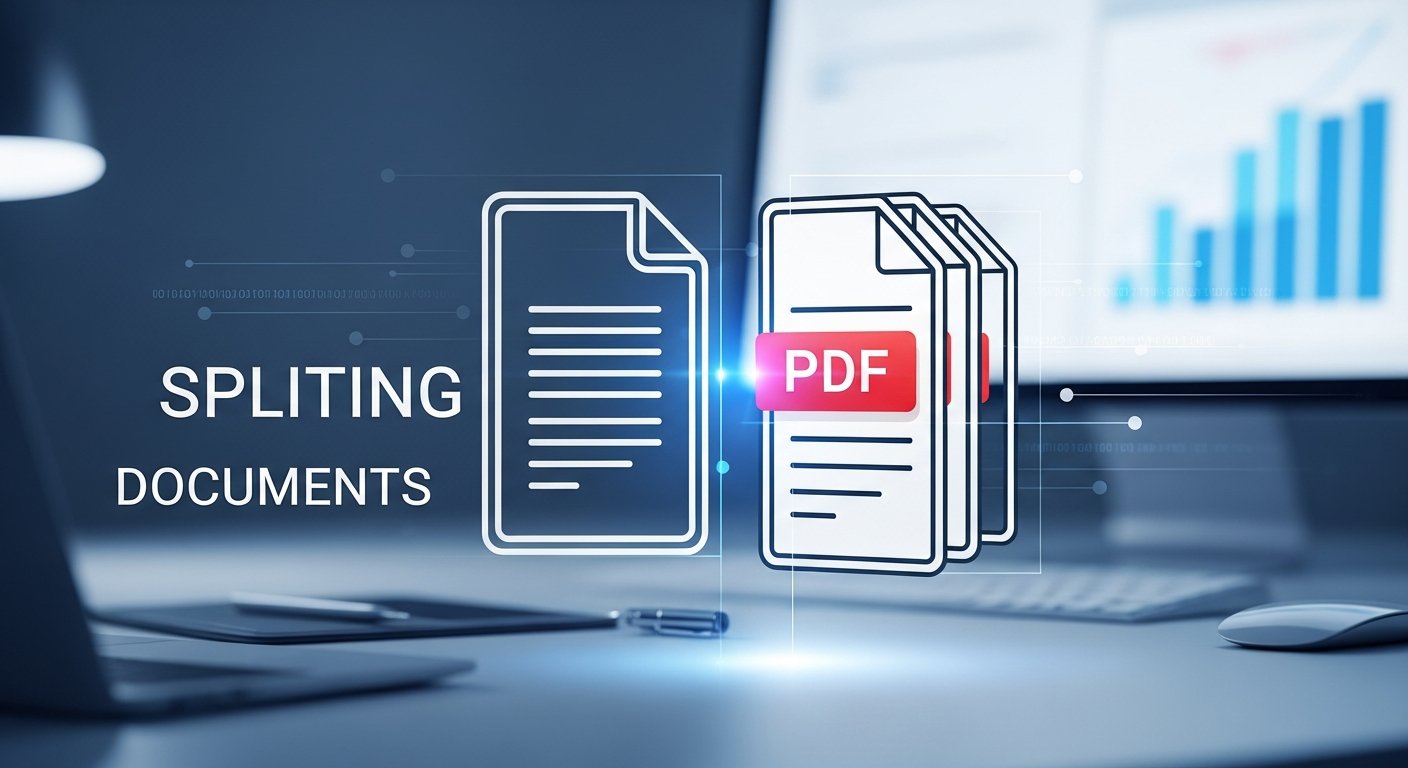
Our PDF Split tool allows you to extract specific pages or sections from PDF documents:
- Extract Individual Pages: Select specific pages to create new PDFs
- Split by Page Range: Extract continuous ranges of pages
- Separate All Pages: Create individual PDFs for each page
- Custom Selection: Choose any combination of pages
Example splitting scenarios:
Original PDF: 50 pages
• Extract pages 1-10 for Chapter 1
• Extract pages 11-20 for Chapter 2
• Extract pages 45-50 for Appendix
Common PDF Tasks Made Easy
Our PDF tools help with various tasks:
- Merging PDFs: Combine multiple documents into one
- Splitting PDFs: Extract specific pages or sections
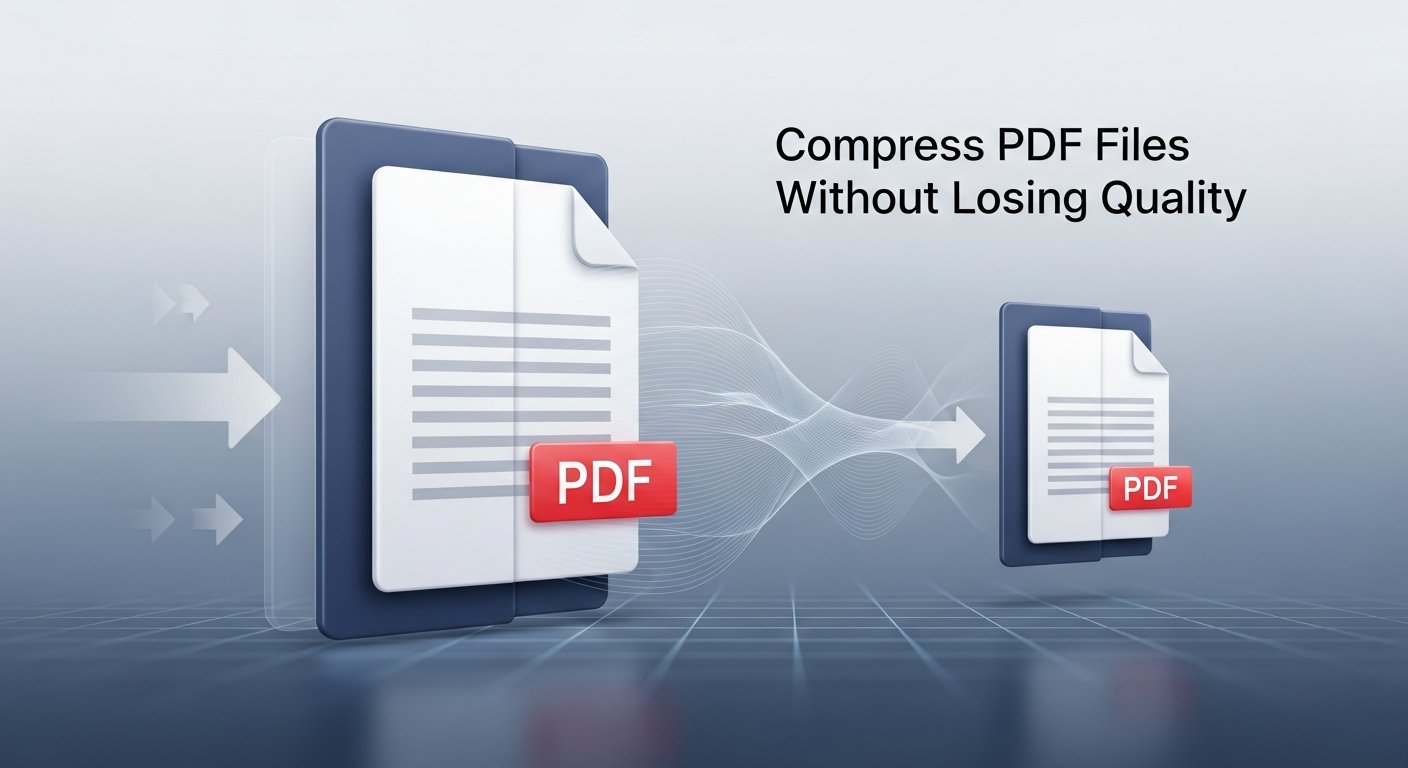
- Compressing PDFs: Reduce file size for sharing
- Converting Images: Turn images into PDF documents
How to Split a PDF Document
Follow these simple steps to split your PDF:
- Select the PDF Split tool from our navigation
- Upload your PDF file by dragging and dropping or browsing
- Choose your splitting method:
- Extract pages: Select individual pages
- Split by range: Enter page ranges (e.g., 1-5, 10-15)
- Separate all: Create individual PDFs for each page
- Preview the selected pages
- Click "Split PDF" to process
- Download your split PDF files as a ZIP archive
Use Case
Perfect for separating chapters from an ebook, extracting forms from a multi-page document, or isolating specific pages from a report.
Best Practices
- Use descriptive filenames for easy organization
- Check file sizes before emailing or uploading
- Preview changes before finalizing
- Keep original files as backups
- Use compression for web uploads
Conclusion
Working with PDFs doesn't have to be complicated or expensive. Our free online PDF tools provide everything you need to manage, edit, and optimize PDF documents. Whether you're a student, professional, or casual user, these tools will save you time and effort while ensuring your documents look perfect.